What is assignment submission? Your 2026 ANZ uni guide

TL;DR:
- Assignment submission involves uploading your work and clicking submit in your LMS to confirm receipt.
- Failing to press the final submit button or check for confirmation can prevent your work from being graded.
Assignment submission is the formal process of handing in your academic work through your university’s Learning Management System (LMS), such as Canvas, Moodle, or Blackboard, by uploading files or entering text and finalising with a submit action. That final click is what confirms your work is received for grading. Many students assume uploading a file is enough. It is not. Understanding the full assignment submission process protects your marks and saves you from avoidable stress at the end of semester.
What is the standard assignment submission process in Canvas, Moodle, or Blackboard?

Assignment submission is defined as the complete act of delivering your work, from locating the task in your LMS to receiving a confirmation receipt. The process has a clear sequence, and skipping any step can mean your work never reaches your lecturer.
Here is how it works across most ANZ university LMS platforms:
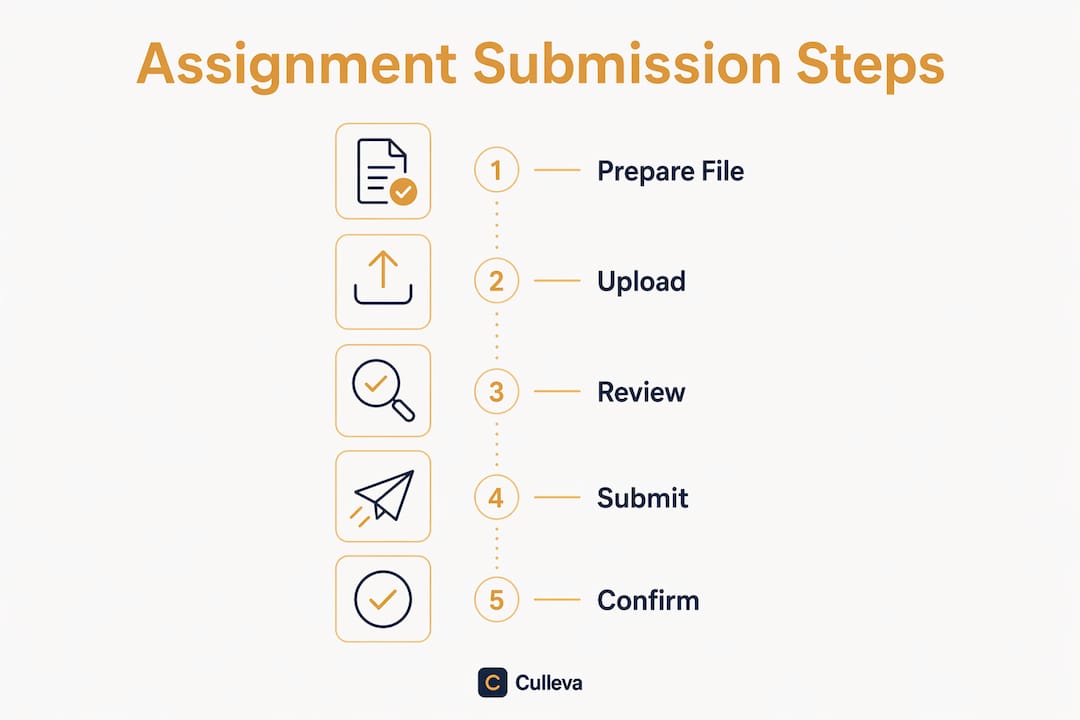
- Log in and locate the assignment. Find it under your unit (for example, PSYC101 Week 5 Essay) in Canvas, Moodle, or Blackboard. Check the due date and any specific instructions before you do anything else.
- Select your submission type. Most platforms offer file upload, text entry, URL, or media. Your unit outline will specify which one to use. If it says PDF, submit a PDF.
- Attach or enter your work. Upload the correct file or paste your text. Double-check the filename and file size before moving on.
- Click the final “Submit” button. This is the step most students miss. Uploading alone does not complete your submission. You must click Submit to send your work to the instructor.
- Confirm receipt. A confirmation number appears on screen and an email lands in your inbox. Both confirm your work has been received.
Pro Tip: Draft any text-entry assignments offline in a Word doc first. Pasting into the LMS text field protects you against session timeouts and browser crashes that can wipe your work mid-entry.
Keep that confirmation email. Retaining receipts and original files until your grades are finalised gives you solid evidence if a dispute ever comes up.
What are the most common submission mistakes to avoid?
The most costly submission errors are almost always preventable. Knowing them in advance means you will not be the student emailing your lecturer at 11:58 PM on a Sunday.
- Uploading without submitting. Many students believe that attaching a file finishes the job. The final Submit button is a separate, required step.
- Not checking for confirmation. If you do not see a confirmation number on screen or receive an email, your submission may not have gone through. Do not assume it worked.
- Wrong file format or corrupted file. Submitting a .pages file when the brief asks for PDF, or uploading a file that will not open, can result in a zero. Always open your uploaded file after attaching it to verify it is readable.
- Leaving it to the last minute. Technical issues like browser crashes or internet outages are not accepted as excuses at most ANZ universities. Tech errors are not a get-out-of-jail-free card. Responsibility sits with you.
- Not contacting IT support immediately. If your confirmation is missing, contact your help desk straight away rather than waiting until after the deadline. Help desks can resolve disputes professionally when notified promptly.
Pro Tip: Aim to submit at least two hours before the deadline. That buffer gives you time to fix a failed upload, a wrong file, or a frozen browser without losing marks.
Check out this assignment submission checklist for a full rundown of what to verify before you click Submit.
How do assignment deadlines and time limits affect your submission?
Deadlines in an LMS are not flexible by default. Missing one by even a minute can trigger a late penalty or lock you out entirely.
| Deadline type | How it works | What happens if you miss it |
|---|---|---|
| Hard deadline | Set date and time in the LMS | Late penalty or no submission accepted |
| Timed attempt | Countdown starts on “Start Attempt” | Auto-submits or locks when time expires |
| Extension granted | Adjusted date set by your lecturer | Original deadline still applies for others |
| Draft save | Work saved but not submitted | Not received for grading until you click Submit |
If a time limit is set, the countdown begins the moment you click “Start Attempt.” You must submit within that window. Closing the browser does not pause the clock.
The best way to manage this is to know every deadline before Week 1 ends. Your unit outline lists them all. Cross-reference that with your LMS calendar so nothing sneaks up on you. Good deadline management strategies make the difference between a calm submission and a panicked one.
What submission types can you use and how do you choose?
The right submission type depends entirely on what your assignment brief specifies. Using the wrong one can mean your work is not received in a usable format.
| Submission type | Best for | Common file types |
|---|---|---|
| File upload | Essays, reports, lab write-ups | .docx, .pdf, .xlsx |
| Text entry | Short responses, reflections | Typed directly in LMS |
| URL | Websites, portfolios, online projects | Web link |
| Media upload | Presentations, video assessments | .mp4, .mp3, .pptx |
File upload is the most common method at ANZ universities. PDF is the safest format because it preserves your formatting across all devices and operating systems. If your brief does not specify a format, PDF is the right default.
Text entry works well for short reflective tasks, but always draft offline first. A session timeout can erase everything you have typed. URL submissions are common in design and IT units where your work lives on a hosted platform. Always test the link before submitting to confirm it is publicly accessible.
Following the assignment submission guidelines in your unit outline is non-negotiable. Lecturers set submission types for a reason, and deviating from them can cost you marks before your work is even read.
Key takeaways
Successful assignment submission requires completing every step from file upload through to confirmation receipt, not just attaching a document.
| Point | Details |
|---|---|
| Submission is not complete until you click Submit | Uploading a file alone does not hand in your work; the final Submit action is required. |
| Always confirm receipt | Check for an on-screen confirmation number and a receipt email after every submission. |
| Submit early to avoid penalties | Aim to submit at least two hours before the deadline to allow time to fix technical issues. |
| Keep a local archive | Save your submitted files and confirmation emails until your course grades are finalised. |
| Match the submission type to the brief | Use the format your unit outline specifies; PDF is the safest default for file uploads. |
Culleva keeps your submissions and deadlines organised
Staying on top of every assignment due date across multiple units is genuinely hard. Culleva is built for exactly that.
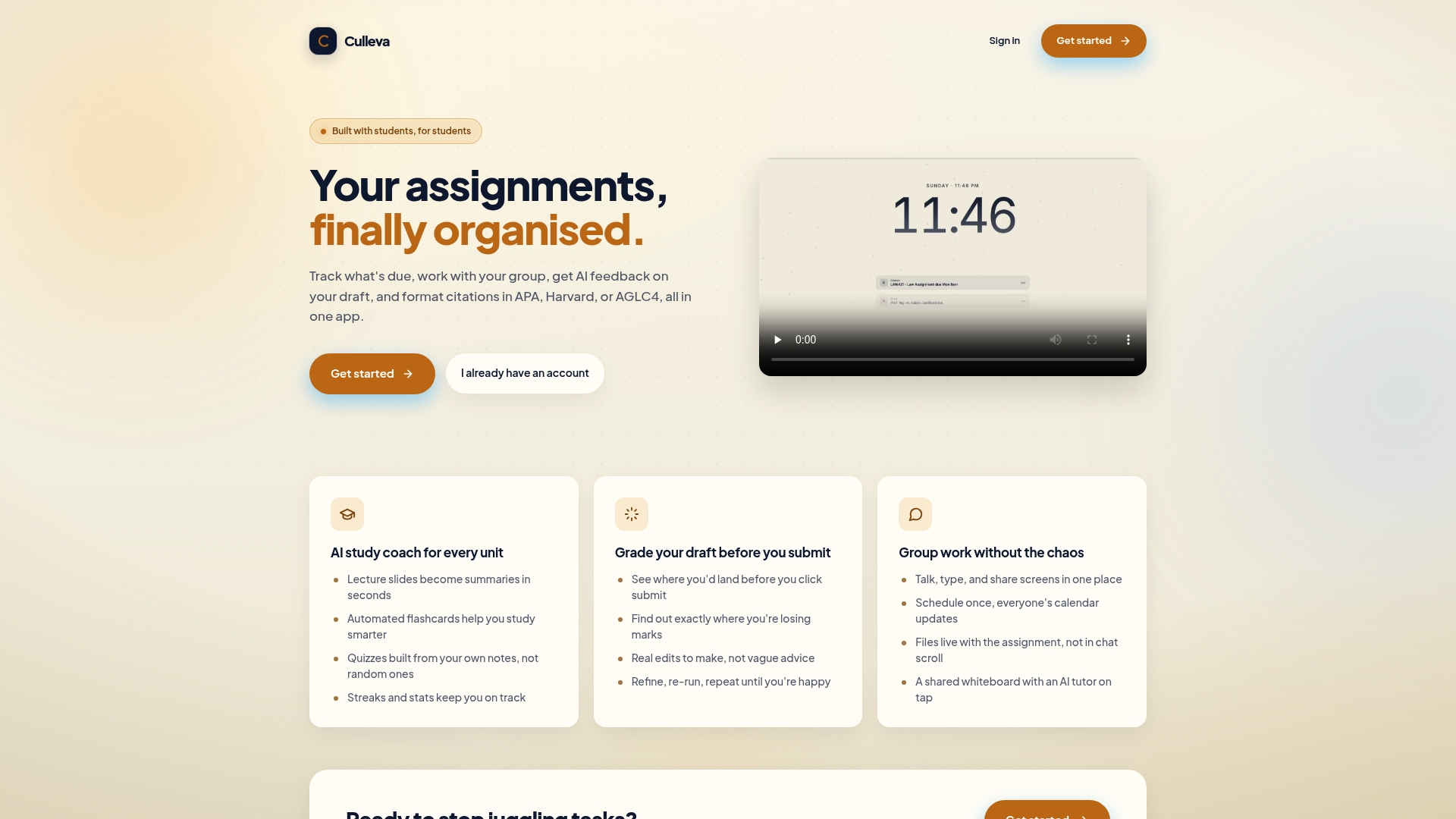
Culleva tracks all your assignment deadlines in one place and alerts you before they arrive, so you are never caught off guard. You can store your assignment briefs, submission notes, and file copies inside the app, keeping everything linked to the right unit. The assignment tracking feature lets you mark submissions as done and monitor what is still outstanding across your full semester. No more checking five different tabs to work out what is due when. Get started at culleva.com and get your semester under control.
FAQ
What does assignment submission mean?
Assignment submission is the formal process of delivering your academic work to your instructor via your university’s LMS, such as Canvas, Moodle, or Blackboard. It is only complete after you click the final Submit button and receive a confirmation receipt.
Is uploading a file the same as submitting?
No. Uploading a file and submitting are two separate steps. You must click the Submit button after attaching your file to complete the process.
What should I do if I do not receive a submission confirmation?
Contact your university’s IT help desk immediately. Help desks recommend reporting missing confirmations straight away so disputes can be resolved before the deadline passes.
How early should I submit an assignment?
Submit at least two hours before the deadline. That buffer gives you time to fix technical issues like a failed upload or a wrong file format without incurring a late penalty.
What is the best file format for assignment submission?
PDF is the safest default for file upload submissions. It preserves your formatting across all devices and is accepted by every major LMS platform used at ANZ universities.
Recommended
Stay on top of every assignment
Culleva brings your assignments, group work, calendar, and an AI study coach into one place. Free to start.